Command-Line Interface
Metasyn provides a command-line interface (CLI) for accessing core functionality without needing to write any Python code.
The CLI currently has three subcommands:
The
create-metasubcommand, which allows you to create generative metadata from a dataset file and/or a.tomlconfiguration file.The
synthesizesubcommand, which allows you to generate synthetic data from aGMF fileThe
schemasubcommand, which allows you to create validation schemas for GMF files.
At any point, you can also use the help command to get more information about the CLI and its subcommands:
metasyn --help
When should I (not) use the CLI
For generating synthetic data from a GMF (json) file (the synthesize command), the CLI can be used safely and will result in identical output to the direct Python API. However, for the create-meta command there are some limitations. Currently, it can read .sav, .zsav and .csv
files. The main limitation is that it needs to read the
file, for which it tries to use sensible default settings. However, this can result in errors. If you encounter errors, might want to either preprocess your data
so that it can be read with the default settings, or use the python API instead.
Another limitation is that you cannot specify which columns should be categorical for .csv files.
Accessing the CLI
If you have installed the main metasyn package, the CLI should be available automatically. You can find instructions on how to install metasyn in the Installation section of the documentation.
Alternatively, the CLI can be accessed through a Docker container, allowing you to run metasyn in an isolated environment without installing the package on your system. Additionally, this method allows you to use earlier versions with ease, e.g., to synthesize data from old GMF files.
Here’s how you can use Docker to access Metasyn’s CLI:
Install Docker: If Docker isn’t already set up on your machine, please follow the instructions on Docker’s official website.
Pull the metasyn Docker Image: After successfully installing Docker, you can download the
metasynDocker image from Docker Hub using the following command.docker pull sodateam/metasynRun metasyn’s CLI via Docker: Once the Docker image is downloaded, you can use the following command to run a
metasynCLI command within a Docker container (in this case--help), and simultaneously set the working directory (which we denote as wd in this case).To display the help file:
docker run --rm sodateam/metasyn --helpTo preview synthesized data from an existing GMF file:
docker run --rm -v %cd%:/wd sodateam/metasyn synthesize --preview /wd/my_gmf_file.jsonTo display the help file:
docker run --rm sodateam/metasyn --helpTo preview synthesized data from an existing GMF file:
docker run --rm -v $(pwd):/wd sodateam/metasyn synthesize --preview /wd/my_gmf_file.json
Note
You can also specify which metasyn version to use in docker, by adding a tag to the docker image. For example, to use version 2.1.0, you can use the following command:
docker pull sodateam/metasyn:v2.1.0
docker run -v %cd%:/wd sodateam/metasyn:v2.1.0 --help
docker run -v $(pwd):/wd sodateam/metasyn:v2.1.0 --help
Creating generative metadata
The create-meta subcommand combines the estimation and serialization steps in the pipeline into one, this allows you to generate generative metadata for a tabular dataset,
and store it in a GMF (Generative Metadata Format) file.
Note
To read .sav and .zsav files, you will need to install the pyreadstat package.
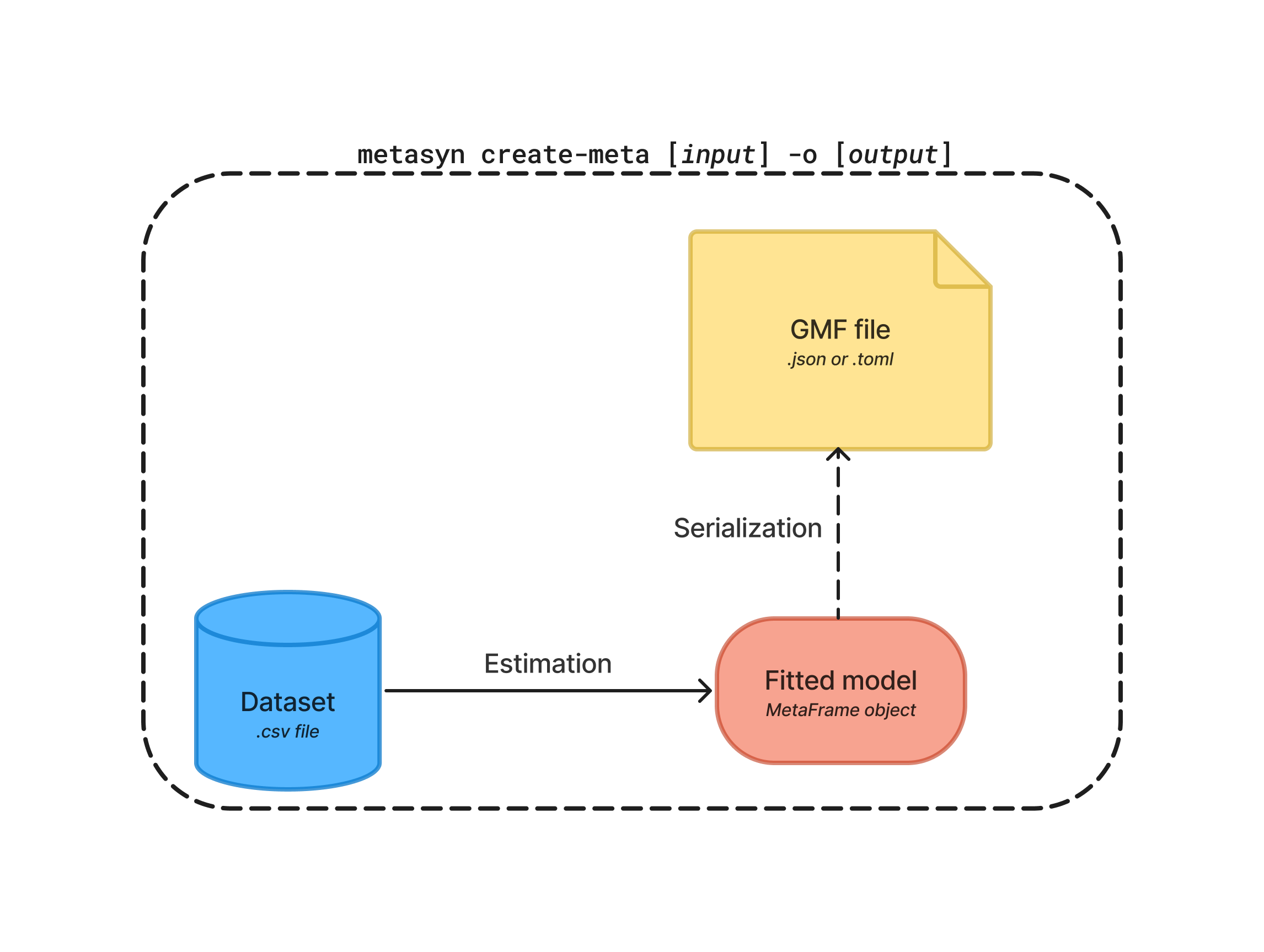
The create-meta command can be used as follows:
metasyn create-meta [input] --output [output]
This will:
Read the file from the [input] filepath
Estimate the metadata from the data
Serialize the metadata into a GMF file and save it at the [output] filepath
The create-meta command takes one positional argument:
[input]: The filepath and name of the file from which the metadata will be generated.
An example of how to use the create-meta subcommand is as follows:
metasyn create-meta wd/my_dataset.csv wd/my_gmf.json
docker run -v %cd%:/wd sodateam/metasyn create-meta wd/my_dataset.csv wd/my_gmf.json
docker run -v $(pwd):/wd sodateam/metasyn create-meta wd/my_dataset.csv wd/my_gmf.json
The create-meta command also takes two optional arguments:
--config [config-file]: The filepath and name of a .toml configuration file that specifies distribution behavior. For example, if we want to set a column to be unique or to have a specific distribution, we can do so by specifying it in the configuration file. Information on how to use these files can be found in the Improve your synthetic data section.-o [file]or--output [file]: The filepath and name of the output JSON file that will contain the generative metadata. If unused, the GMF will be printed to screen.
Generating synthetic data
The synthesize subcommand combines the deserialization and generation steps in the pipeline into one, and allows you to generate a synthetic dataset from a previously saved MetaFrame (stored as GMF file).
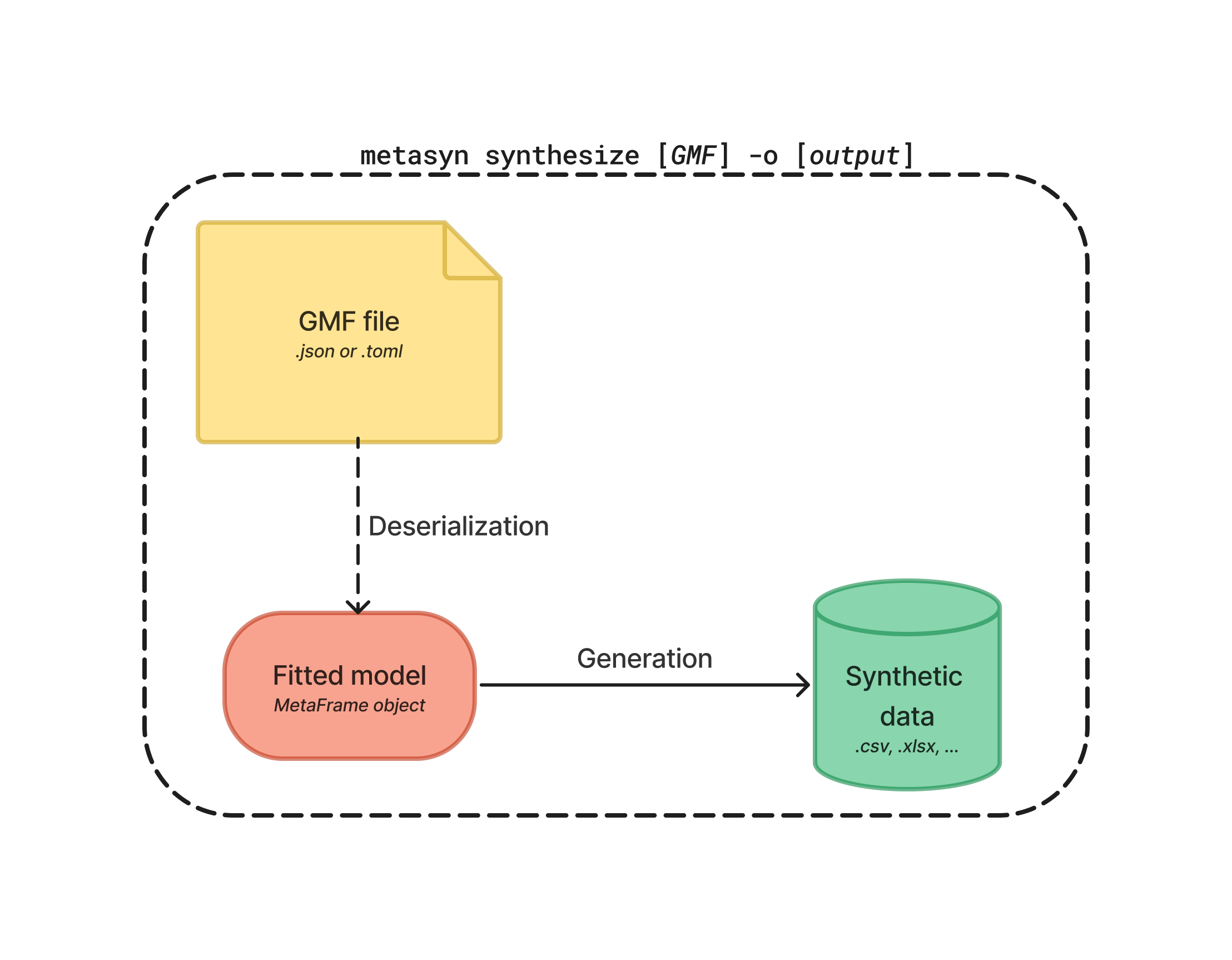
The synthesize command can be used as follows:
metasyn synthesize [input] --output [output]
This will:
Read the GMF file from the [input] filepath
Deserialize it into a MetaFrame
Generate synthetic data based on the metadata
Save the output data to a file at the [output] filepath
The synthesize command takes two positional arguments:
[input]: The filepath and name of the GMF file.
An example of how to use the synthesize subcommand is as follows:
metasyn synthesize wd/my_gmf.json -o wd/my_synthetic_data.csv
docker run -v %cd%:/wd sodateam/metasyn synthesize wd/my_gmf.json -o wd/my_synthetic_data.csv
docker run -v $(pwd):/wd sodateam/metasyn synthesize wd/my_gmf.json -o wd/my_synthetic_data.csv
The synthesize command also takes optional arguments:
-o [file]or--output [file]: Destination file for the synthetic data, by default the original filename is used.-n [rows]or--num_rows [rows]: To generate a specific number of data rows.-por--preview: To preview the first six rows of synthesized data. This can be extremely useful for quick data validation without saving it to a file.-s [seed]or--seed [seed]: Set the seed for the generation of synthetic data.-c [prefix]or--column-prefix [prefix]: Put a prefix before all columns, e.g. withSYN_as prefix, columnIDbecomesSYN_ID.-f [file_prefix]or--file-prefix [file_prefix]: Put a prefix before the file name.
Creating validation schemas
The schema subcommand generates a schema that describes the expected format of the GMF files. These can be used to validate GMF files before importing and loading them into a MetaFrame.
metasyn schema
It’s also possible to include additional plugins in the validation schema, this can be done by passing in their names as space-seperated arguments:
metasyn schema plugin1 plugin2
To retrieve a list of all available plugins, you can use the --list or -l argument. This displays the available plugins:
metasyn schema --list